You have found a baby tracker that fits your family better—but the old app contains six months of feeds, nappies, naps and broken nights. Starting again feels like erasing the evidence of how far you have come.
It also creates a practical problem. A new tracker cannot learn from a pattern it cannot see.
The safest way to switch baby tracker apps is to export the old app's data as a CSV file, keep that untouched original, preview the import in the new app and spot-check several important days before you stop using the old one. Do not delete anything on day one.
OBubba has a dedicated Import from another app flow for this. It recognises Huckleberry exports directly and makes a best-effort, header-based import from Baby Connect, Sprout, Glow and Baby Tracker CSV files. It also re-imports OBubba's own export format.
The calm switching plan
Use this order:
- Export from the old app as CSV, not PDF or a screenshot.
- Save the original file unchanged somewhere you control.
- Open it once to confirm it has a header row and more than a handful of lines.
- Import it into a new OBubba baby profile and read the preview count.
- Spot-check sleep, feeds, nappies and units across several dates.
- Run both apps briefly if another caregiver still needs time to move.
- Keep the old account and original CSV until the new timeline has proved reliable.
This is a migration, not an emergency. You can pause at every step.
What is a CSV—and why not a PDF?
A CSV is a simple spreadsheet-style file: each row represents an event and each column carries a field such as date, time, activity or amount. The words stand for comma-separated values.
A PDF is designed to look readable. A CSV is designed to keep structured data. That is why a PDF report may be useful for a health visitor but is usually the wrong file for moving thousands of individual logs into another app.
Do not copy numbers out of a summary chart. Ask the old tracker for its data export and choose CSV when offered.
Before you export: make a five-item migration checklist
Write down what you care most about preserving. For many families that is:
- bedtime and morning wake
- night wakes and their approximate duration
- bottle or breastfeed history
- wet and dirty nappies
- pumping or medicine records
Add a sixth item if one feature matters unusually strongly to you—for example solids, temperature or notes about reflux.
This list gives you a sensible test after import. “The file said 8,412 entries” is not enough proof; you need to know whether the entries you actually rely on landed in the right form.
How to export from common baby trackers
Export menus change, so check the source app's current help page when the labels on your phone differ.
Huckleberry
Huckleberry's official help says to tap the child's profile icon, scroll down and choose Export tracking data as CSV. The app emails a download link to the account address; Huckleberry says that link expires after 24 hours and that each child profile is exported separately.
Download the file before the link expires. If you have twins or multiple children, export each profile and migrate them one at a time so their histories cannot be mixed.
Baby Connect
Baby Connect's official reports page says its data can be customised and exported as CSV or HTML via email. Choose CSV for import. Keep any HTML report separately if you want a human-readable archive.
Glow Baby
Glow's current Baby page lists PDF and CSV data export as a premium feature, while Glow's safety page says support can send a CSV for safekeeping. Availability and menu location may depend on your plan and app version, so check the current export option or contact Glow support.
Baby Tracker by Nighp
Baby Tracker's official FAQ lists CSV exporting among the full-version features. This is different from its proprietary Data Clone backup. For OBubba, choose the CSV export; a clone file is meant for Baby Tracker itself and is not a general spreadsheet.
Sprout and other apps
Look for Export, Reports, Download data or Share CSV. If you only see PDF, ask the app's support team whether a raw CSV export is available. Never upload a random database backup and hope it is equivalent.
How to import the CSV into OBubba
New parents can reach the import option while setting up OBubba. Returning parents can open Account → Import data.
The current screen keeps the journey visible:
> 1 Export CSV → 2 Choose file → 3 Preview
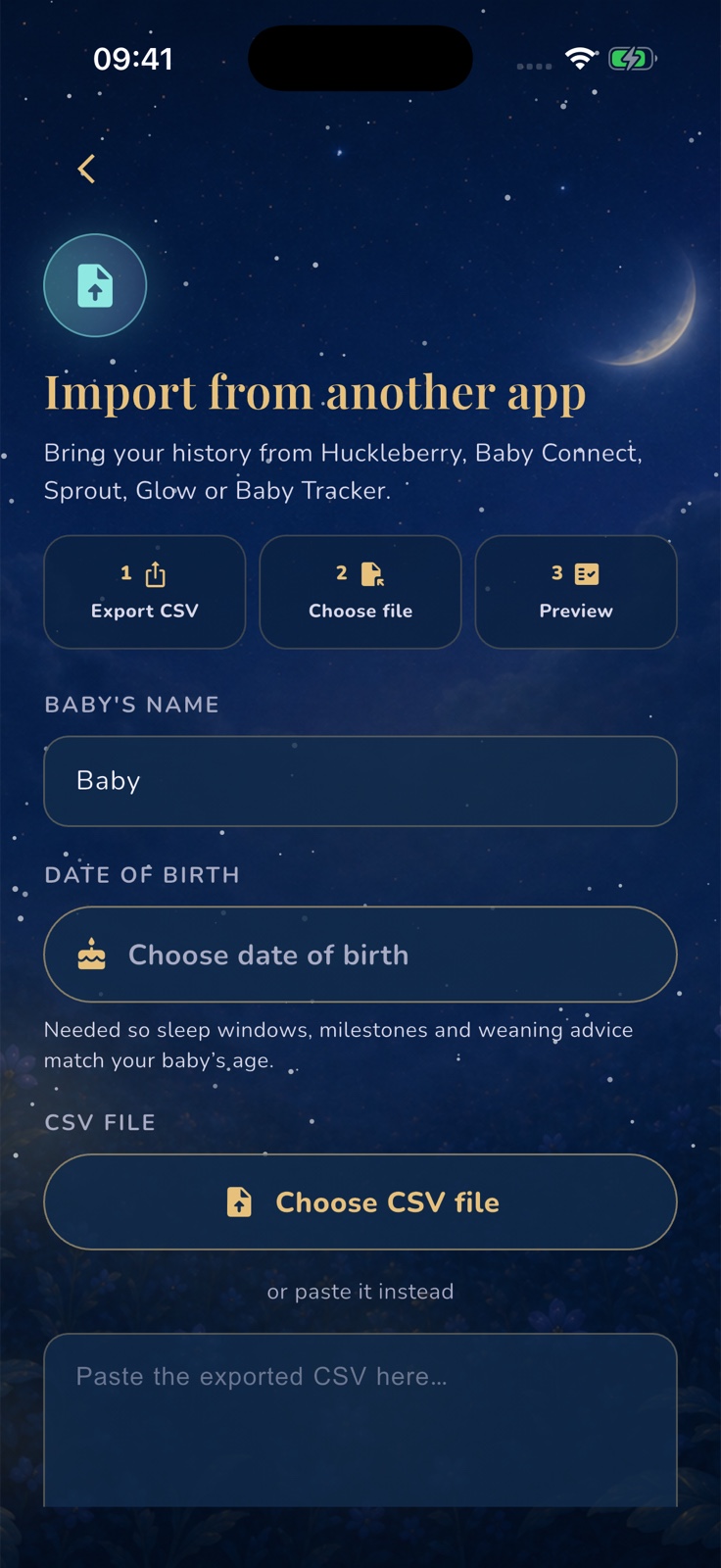
Then:
- enter the baby's name
- choose the correct date of birth
- tap Choose CSV file, or paste the CSV text
- wait for the detection preview
- check the detected format, ready-entry count and any skipped-row count
- import only when the preview looks credible
OBubba asks for date of birth because CSV logs usually do not contain reliable profile metadata. The date lets age-banded sleep windows, milestones and weaning guidance match this baby rather than a generic age.
The import creates a new baby profile. If you already made a blank profile while exploring OBubba, expect the migrated history to appear under the newly created profile rather than being merged silently into existing logs.
Try OBubba free → — bring the history with you, preview what OBubba recognises and keep using the patterns you already worked to collect.
What the real importer does with the file
The CSV text is read and parsed locally on the device first. OBubba identifies the header shape, translates recognised rows into its own entry types and shows a preview before saving the new profile.
There are three levels of support:
| File type | How OBubba handles it | |---|---| | OBubba CSV | Full round-trip mapping for OBubba's own structured fields | | Huckleberry CSV | Dedicated mapping for its known headers and event labels | | Baby Connect, Sprout, Glow, Baby Tracker and other recognisable CSVs | Header-driven best effort using common date, time, type, activity, category, amount and note columns |
“Best effort” matters. Two apps can both call a column “Activity” while storing different details inside it. OBubba does not pretend every proprietary feature has a universal equivalent.
Recognised foreign entries can include:
- sleep and naps with start and end times
- breastfeeding and bottle feeds
- bottle or pump amounts where a clear ml or oz value exists
- solids, nappies, medicine, temperature and notes
- dates written in common ISO or slash formats
- 12-hour times with am/pm and 24-hour times
Unknown activity labels fall back to notes when there is enough date-and-time context. A row with no usable time or activity may be skipped rather than invented.
Why imported nights need more than row copying
This is one of the most important differences between a superficial importer and a useful one.
Some trackers export a broken night as several separate sleep sessions:
| Exported row | Time | |---|---| | Sleep session 1 | 7:30pm–11:45pm | | Sleep session 2 | 12:10am–3:00am | | Sleep session 3 | 3:35am–6:25am |
A literal row-for-row import would look like three unrelated sleeps. It could undercount total night sleep, hide the two awake gaps or attach part of the night to the wrong calendar day.
For Huckleberry and generic foreign formats, OBubba's importer groups consecutive overnight sessions into one bedtime-to-morning sleep arc and creates explicit night-wake entries for the gaps. Daytime naps remain separate.
That transformation lets the existing sleep engine read the migrated night in the same shape as a night tracked natively in OBubba. It is still an interpretation of the exported timestamps, so spot-check unusual nights—especially travel, sickness, split nights and very early bedtimes.
Units and dates: the quiet migration traps
Millilitres and ounces
OBubba converts a volume explicitly marked oz to millilitres. It does not treat an unrelated number in a note—such as “finished in 15 min”—as 15ml. If an export leaves the unit out, the amount may be absent rather than guessed.
Celsius and Fahrenheit
Temperature values explicitly marked Fahrenheit, or clearly outside a plausible Celsius range, are converted to Celsius for OBubba's internal record. Implausible values are dropped rather than accepted as a dramatic false temperature.
Still compare at least one known reading after import. A tracking app is not a medical record, and a migrated temperature should never determine care without checking the original context.
Day/month versus month/day
“06/10/2026” can mean 6 October or 10 June. OBubba uses the app's region for ambiguous slash dates and validates impossible dates instead of rolling them onto another day.
ISO dates such as 2026-10-06 are less ambiguous. If several imported days look shifted by months, stop and check the phone's region and the source CSV before continuing.
Midnight
Bedtime and its early-hours wakes belong to one physical night even though they cross two calendar dates. OBubba's importer preserves absolute timestamps long enough to group the night, then files the sleep arc and wakes into the day structure its sleep analysis expects.
What probably will not transfer perfectly
CSV is excellent for rows and numbers. It is not a complete clone of another app.
Expect to review or recreate:
- profile photos and milestone photos
- reminders, notification preferences and live timers
- caregiver accounts, sharing permissions and subscriptions
- proprietary predictions, scores or coaching plans
- custom categories that have no OBubba equivalent
- formatting inside long notes
- fields the old app did not include in its export
The preview reports how many rows became entries and how many rows were skipped. It cannot prove that every source-app-specific subfield had an exact destination.
The ten-minute spot check
Do this before declaring the move finished.
Check one ordinary day
Compare feed count, bottle amount, nap count and nappies against the old app.
Check one difficult night
Choose a night with several wakes. Confirm bedtime, morning wake and the awake gaps make sense in OBubba.
Check one boundary date
Use the first or last day of a month, or a day with events after midnight. This quickly exposes date-order and night-bucketing mistakes.
Check one unit-sensitive event
Compare an oz bottle, decimal temperature or pumping amount.
Check the skipped-row message
If rows were skipped, open the CSV in a spreadsheet and inspect the same number of unusual or blank rows. Do not edit the only copy of the original file.
What happens with a very large history?
A multi-year log can become too large for one synced baby profile. OBubba budgets the import below its document-size threshold and, if necessary, keeps the most recent days that fit while dropping the oldest days first.
That is a compromise, but it is explicit. The app shows how many older days were not imported instead of failing the entire migration or claiming that everything arrived.
Keep the original CSV as the long-term archive. If the complete earliest history matters—for a clinical question, legal reason or personal record—retain the source app's report as well and do not rely on one consumer tracker as the only copy.
When can I stop using the old app?
There is no prize for switching in one afternoon.
Wait until:
- the important historical dates pass your spot check
- every active caregiver can see the correct OBubba baby
- new feeds and sleeps are being logged in only one place
- timers, reminders and handover routines are configured
- you have kept the original CSV somewhere safe
Running both apps for two or three days can help a family transition, but do not keep double-logging indefinitely. It creates conflicting “last feed” and “last medicine” times—the exact confusion a shared tracker should prevent.
Quick answers
Can OBubba import a Huckleberry CSV?
Yes. Huckleberry has a dedicated mapping path. Export each child's tracking data as CSV, then use OBubba's Import from another app screen and inspect the preview before saving.
Can I import a PDF report?
No. Use the structured CSV export. A PDF is useful for reading or sharing but not for reliably recreating thousands of separate events.
Will my photos transfer?
Do not expect photos to arrive through a CSV activity export. Save important photos separately before leaving the old app.
Will OBubba merge the CSV into my existing baby?
The current import flow creates a new baby profile from the migrated history. It does not silently merge the file into a populated profile.
What does “rows skipped” mean?
Those rows did not contain a date, time or event label that OBubba could map safely. Review the source file and important dates instead of assuming every skipped row was irrelevant.
Should I cancel the old subscription immediately?
First download the CSV, complete the spot check and make sure all caregivers have moved. Then manage the old subscription through its provider; deleting an app does not necessarily cancel a subscription.
Related guides
- How to choose the best baby tracker app
- What to track when your baby wakes at night
- A simple newborn feeding and nappy log
- Is my pump output normal?
- Baby care handover template for grandparents and nursery
- How to track baby feeds and nappies hands-free
Sources and further reading
- Huckleberry: Can I export my data from the app?
- Baby Connect: Reports and CSV export
- Glow Baby: Features and data export
- Glow: Downloading data for safekeeping
- Baby Tracker by Nighp: FAQ and CSV exporting
Huckleberry, Baby Connect, Sprout, Glow and Baby Tracker are trademarks of their respective owners and are not affiliated with OBubba. Export features, labels and plan requirements can change; check the source app's current help. OBubba imports parent-provided tracking data on a best-effort basis and is not a medical-record migration service.
Ready to try OBubba?
Use OBubba to track feeds, sleep, naps, nappies, growth, milestones and family handovers in one calm baby tracker app.