You have finally settled the baby. One hand is supporting their head, the other is trapped under a muslin, and unlocking a phone feels like a very elaborate way to record “nap started”.
This is where a baby tracker should get quieter.
Use the OBubba home-screen widget when you need a quick glance or one-tap care action. On a compatible iPhone, use the Live Activity to watch a running nap, sleep or feed timer from the Lock Screen or Dynamic Island. When both hands are busy, Siri can start a nap or bedtime timer, stop a running nap or sleep timer, and tell you the next predicted nap without opening OBubba.
These shortcuts reduce friction; they do not remove the need to check an important time, medicine record or ambiguous entry inside the app.
The 20-second guide
| What you need right now | Best OBubba surface | |---|---| | See whether a timer is running | Home-screen widget | | See the next predicted nap or bedtime | Home-screen widget, or ask Siri on iPhone | | Log a feed or nappy quickly | Home-screen widget | | Watch a running nap, bedtime or feed timer | OBubba app, or Live Activity on a compatible iPhone | | Start a nap or bedtime timer, or stop a running nap or sleep timer, with both hands full | Siri on iPhone | | Add a completed feed, nappy and nap together | Quick Log inside OBubba | | Correct a time, add details or record medicine | Open OBubba and review the full form |
The home-screen widget works on iPhone and Android. Live Activities, the Dynamic Island and OBubba's Siri shortcuts are Apple features, so do not expect the same surfaces on Android. Device model, operating-system version and settings also affect what is available.
What the OBubba home-screen widget actually shows
A useful widget should answer the question in your head before asking you to open the app.
Depending on its size, your settings and what is happening now, OBubba's current widget can show:
- the selected baby's name
- an active nap, bedtime or feed timer
- whether the baby is asleep, napping, feeding or being resettled
- the next predicted nap or bedtime when prediction is available
- the most recent feed and today's care counts
- quick actions for feeds, nappies and sleep
The buttons change with context. When no sleep timer is running, the sleep action can say Nap or Sleep according to the next part of the day. During an active timer, it becomes Stop. If a night wake has paused the sleep total while you are helping the baby resettle, the widget opens OBubba to resume at the right moment rather than falsely treating the awake period as sleep.
On Android, the active timer uses a live chronometer. If nothing is running, the widget can show the next valid prediction or the calmer All settled state. Tapping the main widget opens the Track tab; the care buttons take you to the relevant action.
Why the last feed does not disappear at midnight
Parents experience one continuous night. A phone sees a new calendar date at 12:00am.
OBubba's widget snapshot checks the previous day for a recent feed during the early hours, so a 11:40pm bottle does not immediately become “No feed logged yet” at midnight. It also carries an open bedtime or nap across the date boundary and gives a resettling pause priority over a generic asleep state.
Those are small implementation details with a big practical effect: the glance should still make sense at 12:03am.
The running timer on the iPhone Lock Screen
Start a nap, bedtime or breastfeed timer in OBubba on a compatible iPhone and a Live Activity can keep it visible outside the app. On the Lock Screen it shows the baby's name, current state, elapsed time, any useful next-sleep context and one clear stop control.
On supported iPhone models, the same activity also appears in the Dynamic Island. The compact view keeps the timer small; touch and hold it for the expanded view.
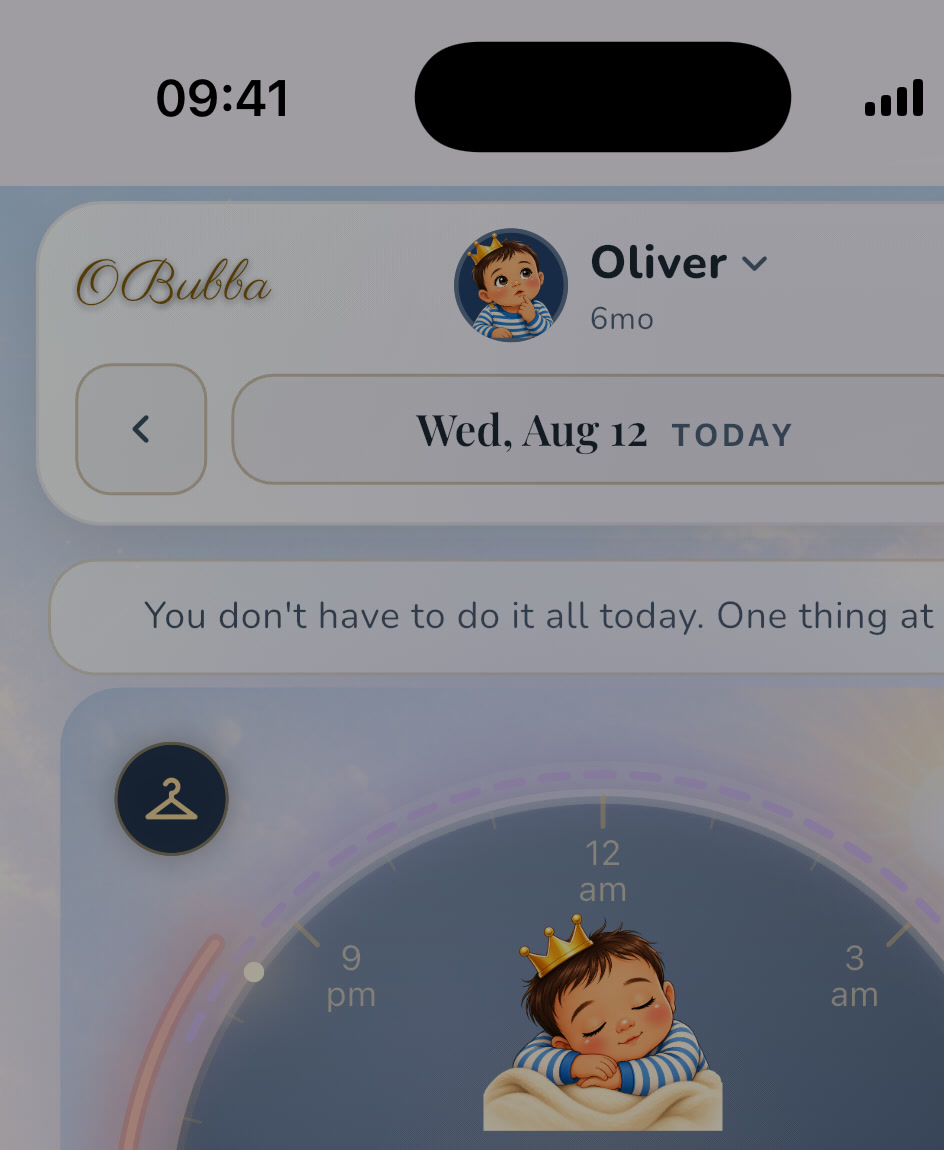
The screenshot above is the real timer that feeds the native Live Activity. It is not a redesigned marketing mockup.
Settling time is not sleep time
If you mark a night wake while a sleep timer is active, OBubba pauses the running sleep total. The Live Activity freezes at that point and changes state while you resettle the baby. When sleep resumes, the start anchor shifts past the awake gap so the final duration does not jump forward as if the baby slept through it.
That distinction is important when you later ask whether the night was fragmented. “Time since bedtime” and “time asleep” are not always the same number.
The Stop button knows which timer it belongs to
OBubba treats a feed timer and a sleep timer as different things. Stopping a breastfeed activity routes to the breastfeed ending flow; it does not accidentally call the sleep-stop action. A nap or bedtime activity uses its own stop path.
The app also keeps one native timer activity as the owner at a time. After a cold restart, can re-adopt the activity iOS preserved instead of flashing a second one. If an old sleep activity needs cleaning up, the native bridge checks its real type so it does not kill a feed activity by mistake.
You should not have to understand any of that at 3am. You should be able to trust that Stop means stop this timer.
What you can say to Siri
OBubba exposes a small set of focused iPhone shortcuts. Natural phrasing can vary, but useful examples include:
| Try saying | What OBubba does | |---|---| | “Siri, start a nap timer in OBubba.” | Starts a timestamped nap timer without opening the app | | “Siri, stop the timer in OBubba.” | Queues a timestamped stop without opening the app | | “Siri, when's the next nap in OBubba?” | Speaks the current next-nap or bedtime answer | | “Siri, log a feed in OBubba.” | Opens OBubba at the feed action so you can add the details | | “Siri, log a nappy in OBubba.” | Opens OBubba at the nappy action | | “Siri, start a sleep timer in OBubba.” | Starts a timestamped bedtime timer without opening the app |
Start and stop are deliberately timestamped at the moment you speak. The action is stored in a durable queue shared with the app, then drains it through the ordinary tracking repository. If OBubba was not on screen, it can still preserve when the request happened rather than substituting the later time when you next open the app.
The queue is bounded rather than allowed to grow forever. That protects the app from replaying an unlimited backlog after a long period offline.
Asking for the next nap
The next nap shortcut reads the latest shared widget snapshot. A running timer wins over a prediction, so Siri can say that the baby is currently napping or sleeping and when it began. If the predicted window has already opened, the answer says roughly how long ago; otherwise it gives the approximate upcoming time.
Open OBubba once if Siri says it needs current information. The shortcut cannot invent a schedule before the app has produced a snapshot, and it does not expose premium-only prediction data to an account that has not unlocked that feature.
Widget, Siri or Quick Log?
These tools solve different problems.
Use the widget for one obvious action
Choose it when you want to glance at state, begin a common care log or stop the timer that is visibly running.
Use Siri for a true hands-busy moment
Choose it when you are holding or settling the baby and the event is unambiguous: start the nap now, stop the current timer now, or ask when the next nap is expected.
Use Quick Log for several completed events
Choose hands-free Quick Log when you need to say, for example, “Fed 120 millilitres at 2:15am, wet nappy at 3am.” Quick Log shows a transcript and structured previews before anything is saved.
That review step is better for amounts, historical times and multiple events. A fast Siri timer command and a preview-before-save voice note should not be forced into the same interaction.
What to open the full app for
Fewer taps are useful only while the record stays trustworthy. Open OBubba when you need to:
- correct a start or stop time
- add a bottle volume, breast side or explanatory note
- record a completed nap from earlier
- identify which child received care in a multi-child household
- review a medicine name, strength, measured amount and actual time
- inspect the night rather than a single status
- resolve a command that Siri heard incorrectly
Do not use a widget or voice assistant to calculate a medicine dose or decide whether a baby's sleep, feeding, temperature or behaviour needs medical attention. Record what happened, then use current professional guidance for the decision.
Multiple babies and shared phones
The widget snapshot includes the selected baby's display name. The live-timer bridge also uses the child's internal code where available, so twins or children with the same display name do not rely on a name alone for identity.
Still look at the name before tapping a quick action. If several carers use OBubba, agree which child stays selected on a shared device and use the baby care handover template for anything that needs more context than a widget can hold.
A privacy check before putting baby data on your screen
A widget is convenient because information is visible before you open the app. That can also make a baby's name, current sleep state, last-feed context or timer visible to someone holding the phone.
Before adding it, ask:
- Is this a personal phone or a shared device?
- Do notification previews appear while the phone is locked?
- Am I comfortable with the baby's status being visible on the Home Screen?
- Should I use a smaller widget with less detail?
- Do I want Live Activities enabled on the Lock Screen?
If the trade-off does not feel right, keep tracking inside OBubba. Removing the widget does not remove the app or its records.
How to add the OBubba widget
On iPhone
- Open OBubba once so it can prepare a current snapshot.
- Go to the Home Screen and touch and hold an empty area until the icons move.
- Tap Edit, then Add Widget.
- Search for OBubba.
- Swipe through the available sizes, choose one and tap Add Widget.
- Move it where you want, then tap Done.
Apple changes interface labels occasionally; its current iPhone guide confirms the same touch-and-hold, Add Widget and size-selection flow.
On Android
- Open OBubba once.
- Touch and hold an empty space on the Home Screen.
- Tap Widgets.
- Find OBubba, then touch and hold its widget.
- Drag it to the Home Screen and release.
- If your launcher supports resizing, touch and hold the widget and drag its handles.
Android launchers vary, so the exact menu design may differ by phone manufacturer.
Live Activities and Siri on iPhone
The Live Activity starts with a supported timer when iOS permits Live Activities for OBubba. If it does not appear, check the app's notification and Live Activity settings, then try starting a fresh timer in OBubba.
OBubba's App Intents make supported actions discoverable to Siri and the Shortcuts app. You can try the phrases above or look for OBubba actions in Shortcuts. Some requests open the app because they need details; start nap, start bedtime, stop timer and next nap are designed to work without that extra screen.
A calmer night setup
Before bedtime, take two minutes:
- Put the medium OBubba widget on the first Home Screen.
- Open OBubba and confirm the right baby is selected.
- Try one Siri phrase in daylight so you know how your phone responds.
- Agree with the other carer what counts as the end of a feed or nap.
- Keep detailed or safety-critical entries for the full app.
The goal is not to track more. It is to stop the useful parts of tracking from interrupting care.
Try OBubba free → — keep the current timer, next sleep and common care actions close without turning every wake into a phone session.
Quick answers
Does the OBubba widget work on iPhone and Android?
Yes, OBubba has a home-screen widget on both. The visuals and interaction differ because iOS and Android use different widget systems.
Does Android have the OBubba Dynamic Island or Siri shortcuts?
No. Dynamic Island, Live Activities and Siri are Apple features. Android has the OBubba home-screen widget with current state, a running chronometer and quick actions.
Can Siri log a whole feed without opening OBubba?
The feed shortcut opens the relevant OBubba action so you can enter and check the details. For several completed events in one sentence, use Quick Log and review its previews before saving.
What happens if I start a nap by Siri while the app is closed?
The iPhone intent stores a timestamped start in the app group's native queue. OBubba processes it through the normal tracking path, preserving when you spoke rather than when the app was later opened.
Will the timer count a night wake as sleep?
Not when the sleep timer is put into its resettling pause. The Live Activity freezes during the pause and resumes after shifting past the awake gap.
Why does Siri ask me to open OBubba before answering the next nap?
The shortcut uses OBubba's latest shared snapshot. Open the app once to refresh it; Siri will not fabricate a prediction when no current snapshot exists.
Related guides
- How to track feeds and nappies hands-free at 3am
- What to track when your baby wakes at night
- How to log baby medicine without double dosing
- A simple newborn feeding and nappy log
- Baby care handover template for grandparents and nursery
- How to switch baby tracker apps without losing your history
Sources and further reading
- Apple: Add and edit widgets on iPhone
- Apple: View Live Activities in the Dynamic Island on iPhone
- Apple: Use Siri with apps on iPhone
- Android Help: Add apps, shortcuts and widgets to Home screens
Ready to try OBubba?
Use OBubba to track feeds, sleep, naps, nappies, growth, milestones and family handovers in one calm baby tracker app.